
DISCLAIMER: Products or services mentioned in this post are not endorsements and I am not receiving any compensation from their companies or developers. They are services that I have personal experience with. The point is simply to help you decide what works for you and what will not. Data breaches are going to happen, regardless of the company and the security measures they take. Being vigilant is always key to minimizing the potential of your data being compromised.
As mentioned in one of my recent Facebook posts, a massive data breach was discovered (around May 30th, 2025). This involved major companies like Google, Apple, and Microsoft. I do not like to sound like an alarmist, but this one is cause for concern. Why? Virtually everyone has a Microsoft, Apple or Google account. I would venture to guess most of us has an account with at least two of the three tech giants involved in this breach.
Here are some obvious (and maybe not so obvious) steps you can take to prevent further damage (ulcers, account lockouts, credit hiccups) due to the breach.
- Change your passwords – IMMEDIATELY! This is by far the best thing to do since it doesn’t cost you anything, except maybe the time and frustration to do so. You should do this regularly anyway, but admittedly, it is easy to neglect.
- When changing your password, choose a STRONG password. Use a combination of uppercase and lowercase letters, numbers, and special characters. Some sites will not allow you to use special characters in passwords and for the life of me, I cannot figure out why. After all, it is 2025! And this goes without saying but, it is not advisable to use the same password for more than one site. Here is a chart showing how long it would take to hack your password based on what your password contains. While I cannot guarantee the authenticity of this graphic, it is one I have seen before and at least gives you a sense of how strong your password is.
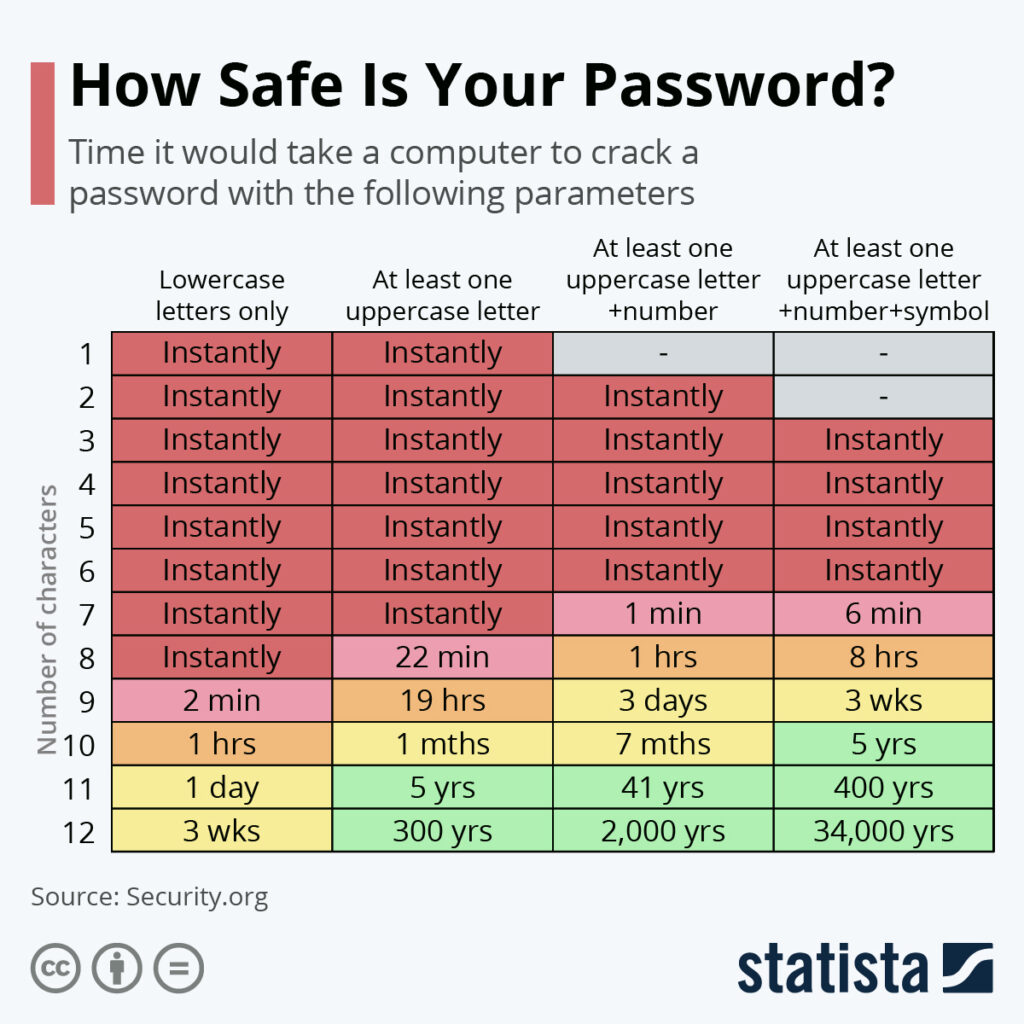
- Use a password manager to keep track of your passwords. There are a multitude of options, all with various features. Some are free while others are paid. Virtually all these password managers will help you create strong passwords and some will help you change the password on most sites. I personally use Keeper. As of this writing (May 31st, 2025) the personal plan (only one user) is $40 a year while the family plan (up to five users) is $85 a year. The family plan also comes with additional features. You can share passwords securely with family members, store 2FA/MFA codes (replacing multiple authenticators), banking information and credit cards and more. Keeper works on Windows, macOS, iPhone, Android, and browsers in Linux. Bitwarden is another great option and is also cross-platform. It does have a free version with limited features but also offers a family version that (as of this writing) costs roughly $40 a year. There are other great password managers including keepassX, NordPass, Dashlane, LastPass and many others. Find what works best for you.
- Use Two-Factor Authentication/Multi-Factor Authentication (2FA/MFA) on all accounts you can. This adds an extra layer of security. Yes, it is a pain. Yes, I sympathize with you. Usually, you can have the account send you a text message (or an email) to verify that you are who you are. Google accounts provide an option to prompt you to open a specific Google app on your phone or tablet, such as the Gmail or YouTube app. Authenticator apps are also an option. Some even autofill the code in your browser on a computer or mobile device.
- Use “Passkeys” if the account you log into has the option. Passkeys are specific “keys” that can be used per device. It does make login a bit easier and certainly more secure since the “key” is tied to the device.
- I would strongly advise you to NOT use the browser Password and Autofill/synchronization features. I know, it is incredibly convenient. It is also easy to find out the location of those precious data, especially if you use the same account password (your Google account) to synchronize that data. Using this option for synchronizing bookmarks or tabs that you currently have open and want to synchronize across multiple devices is okay.
- Check your credit report. You get one free credit check a year. If a specific company has identified that your data has been compromised, they may offer you free credit monitoring for a specified amount of time. You may also want to look into Identity Theft Monitoring. The most reputable company I can think of now is Zander Identity Theft Insurance from Zander Insurance. I am sure there are others out there, but this is the one I have been using for several years, mainly because it covers my immediate family. Shop around or ask your insurance agent if this is part of your homeowners or rental policy. Some employers may offer this as a benefit as well.
- It might also be a good time to change the pin code on your phone or tablet, especially if you have teenagers (or young’uns) around that are sneaky and have prying eyes. Ask me how I know. While you’re at it, you might want to change the password on your computer.
Following these suggestions should give you a very good start playing defense against the latest data breach. While none of the above tips are “set it and forget it” they will go a long way in making sure your data is more secure.